Laravel

Fix “504 Gateway Timeout” When Using Laravel Valet

Created: December 1, 2020 2:53 PM Tags: Dev, General If you get a 504 Gateway Timeout when using Laravel Valet and you want to increate the timeout, you can do this by modifying the file /usr/local/etc/nginx/valet/valet.conf:
vim /usr/local/etc/nginx/valet/valet.conf
Now, add these lines:
proxy_connect_timeout       600;
proxy_send_timeout          600;
proxy_read_timeout          600;
send_timeout                600;
fastcgi_read_timeout        300;
fastcgi_buffers 8 128k;
fastcgi_buffer_size         256k;

To this block:
location ~ [^/]\.php(/|$) {
        fastcgi_split_path_info ^(.+\.php)(/.+)$;
        fastcgi_pass "unix:/Users/sebastian/.config/valet/valet.sock";
        fastcgi_index "/Users/sebastian/.composer/vendor/laravel/valet/server.php";
        include fastcgi_params;
        fastcgi_param SCRIPT_FILENAME "/Users/sebastian/.composer/vendor/laravel/valet/server.php";
        fastcgi_param PATH_INFO $fastcgi_path_info;

        # ENTER HERE
}

After saving the file, restart Laravel Valet:
valet restart
Now, the required timeouts should be increased.

Migrating from Valet to Laravel Sail

Setting up Laravel Sail

Step 1: Installing Docker

Before you can run Laravel Sail, you will need a local Docker setup. On MacOS, it seems like it is simply a case of downloading and installing Docker Desktop

Step 2: Building docker container

Before anything will work, you need to build the docker containers as specified in docker-compose.yml. To do so, run vendor/bin/sail build from inside the Delta LMS directory. This command will take a while to run. Once done, you can set the app live by running vendor/bin/sail up

Step 3: ENV changes

If you tried to access the site now, it would fail, as your ENV file is still pointing at localhost for most things. The following changes are required:
  • APP_URL needs to be changed tohttp://localhost:8084. The port must be the same as the one specified to forward to 80 in docker-compose.yml
  • DB_HOST needs to change to mysql, as this is the name of the default docker container for the MySQL instance. There is another mysql container for testing purposes, named mysql_test. This container exists in order for us to be able to run a separate DB when running tests
  • REDIS_HOST needs to be changed to equal redis. This is the name of the docker container which houses the redis server instance.

Setting alias for Sail

you don’t set an alias for Sail, you will need to run vendor/bin/sail at the beginning of each command, which isn’t ideal. To set the alias you need to add the following line to your bash config file:
alias sail='bash vendor/bin/sail'
The name and location of this file depends on your system. For me it was found at ~/.bashrc Once set, you can then use sail, e.g sail artisan migrate, sail db:seed, etc

Accessing your DB via TablePlus

When accessing your databases running on Sail, you will need to make a couple changes to the config on TablePlus:
  • Database host is 0.0.0.0
  • Database port is the one specified in docker-compose.yml for the mysql container you are accessing: 4306 for the primary DB and 4307 for the test DB
The username and password will be the values you specified for DB_USERNAME and DB_PASSWORD

MySQL username and password

If your local setup uses root and no password to connect to MySQL, there are a couple extra steps required in order to setup access to the database on docker. You will first need to create another user and grant it full privileges to access and make changes to your MySQL instances. Here’s a helpful guide which will assist in doing so. Once you’ve created the user, set your DB_USERNAME as the username for the user you just created and set DB_PASSWORD as the password.

Errors with admin@ip access to DB

Reddit - laravelsail_mysql_connection error Running before migrate & seed:
sail up -d

Running Laravel Dusk

In order to run dusk tests, you will need a new ENV file called env.dusk.local which needs a couple tweaks:
  • APP_URL needs to be http://laravel.test. For some reason this is what the automated web browser has access to, rather than localhost:8084
  • MYSQL_HOST needs to be mysql_test
  • TELESCOPE_ENABLED must be false, otherwise you will get a Class Env does not exist error
  • APP_DEBUG must be false so that PHP debug bar doesn’t pick up click events and cause issues
Once these env variables have changed, you should be able to run all dusk tests with sail artisan dusk.

Documentation and guides

Laravel 8 - Sail Dev To - Laravel Sail Guide

Set up Laravel Websockets

Laravel Websockets is an open source websocket provider which allows us to show data in real-time. It requires quite a bit of setup to get working per site, which this doc will go over.

Step 1: Open the firewall port

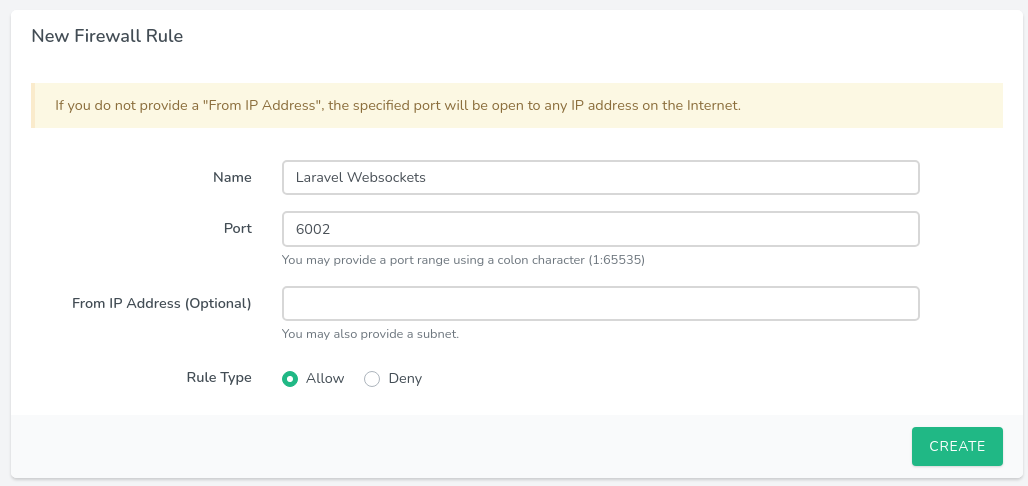
We need to open up access to port 6002 per server. Login to forge.laravel.com, select the server and then click on the ‘Network’ tab from the left-hand side menu: Laravel - Network Scroll down to ‘New Firewall Rule’ and fill in the following details:

  • Name: Can be anything but it should be clear this to enable the port for websockets
  • Port: 6002
  • From IP Address: Leave blank
  • Rule Type: Allow
Laravel - Firewall Rule Click ‘CREATE’ when done.

Step 2: Run websocket server deamon

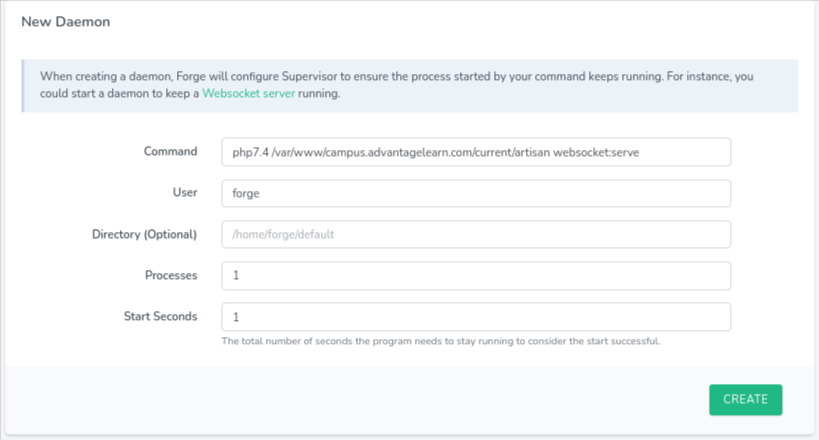
The websocket server works similar to horizon in that it needs a deamon to keep it up constantly. Click on ‘Deamons’ from the left-hand side menu: Laravel - Daemons In the ‘New Deamon’ form, fill in the following details:
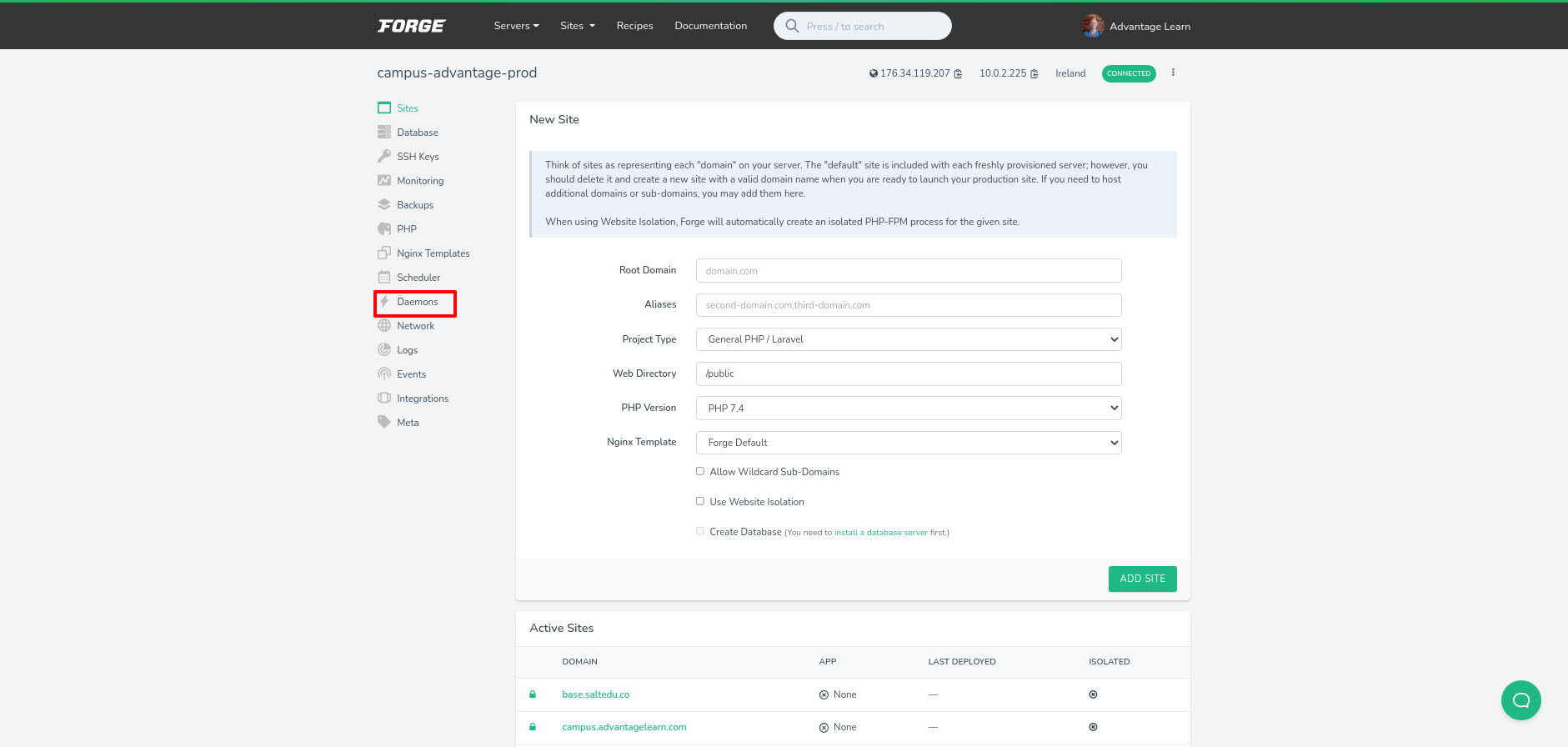
  • Command: php7.4 /var/www/DOMAIN_NAME/current/artisan websocket:serve
  • User: forge
  • Directory: Leave blank
  • Processes: 1
  • Start Seconds: 1
Laravel - New Daemon You’ll need to do this for each site on the server, replacing DOMAIN_NAME for the domain name for each one.

Step 3: Adjust NGINX config

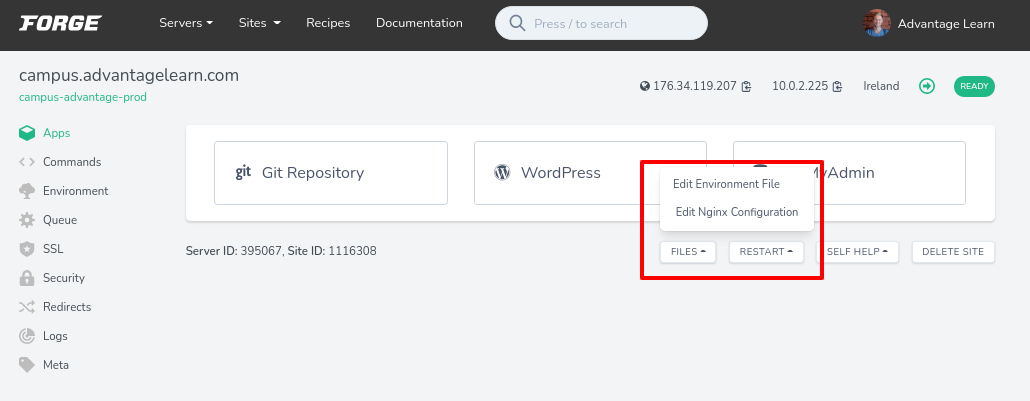
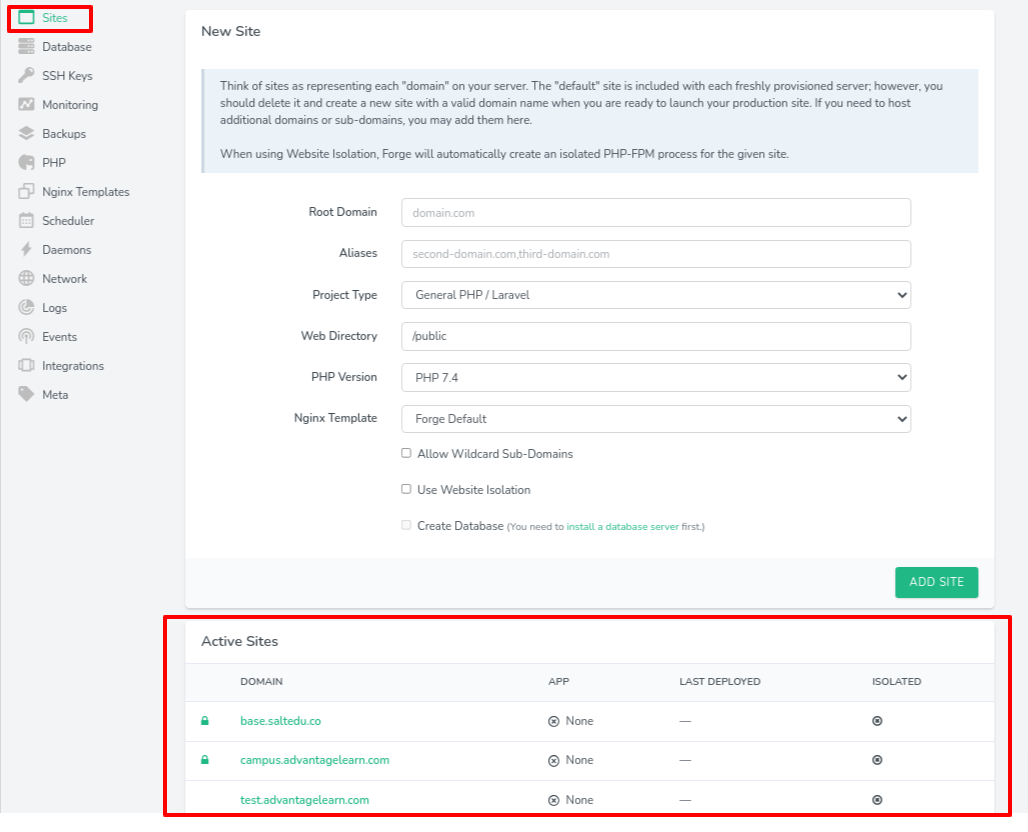
Each site on the server will need to have a new server block in the NGINX configuration allowing it to connect to the websocket server on port 6002. Click on ‘Sites’ from the left-hand side menu, then scroll down to ‘Active sites’ and click on the name of the site. Laravel - Active Sites Look for the ‘Files’ button, click it and then click ‘Edit Nginx configuration’: Laravel - Edit NGINX Duplicate the server block which is listening to port 443, change all references of that port to be 6002 and then replace this block:
location / {
	try_files $uri $uri/ /index.php?$query_string;
}
with this:
	location / {
		proxy_pass             http://127.0.0.1:6001;
		proxy_read_timeout     60;
		proxy_connect_timeout  60;
		proxy_redirect         off;

		# Allow the use of websockets
		proxy_http_version 1.1;
		proxy_set_header Upgrade $http_upgrade;
		proxy_set_header Connection 'upgrade';
		proxy_set_header Host $host;
		proxy_cache_bypass $http_upgrade;
	}
Hit save when done. In full, your Nginx config will look something like this:
# FORGE CONFIG (DO NOT REMOVE!)
include forge-conf/campus.advantagelearn.com/before/*;

server {
    listen 80;
    server_name campus.advantagelearn.com;
    return 301 https://$host$request_uri;
}

server {
    listen 443 ssl http2;
    listen [::]:443 ssl http2;
    server_name campus.advantagelearn.com;
    server_tokens off;
    root /var/www/campus.advantagelearn.com/current/public;

    client_max_body_size 100M;

    # FORGE SSL (DO NOT REMOVE!)
    ssl_certificate /etc/nginx/ssl/campus.advantagelearn.com/877893/server.crt;
    ssl_certificate_key /etc/nginx/ssl/campus.advantagelearn.com/877893/server.key;

    ssl_protocols TLSv1.2;
    ssl_ciphers TLS13-AES-256-GCM-SHA384:TLS13-CHACHA20-POLY1305-SHA256:TLS_AES_256_GCM_SHA384:TLS-AES-256-GCM-SHA384:TLS_CHACHA20_POLY1305_SHA256:TLS-CHACHA20-POLY1305-SHA256:ECDHE-ECDSA-AES256-GCM-SHA384:ECDHE-ECDSA-CHACHA20-POLY1305:ECDHE-ECDSA-AES256-SHA384:ECDHE-RSA-AES256-GCM-SHA384:ECDHE-RSA-CHACHA20-POLY1305:ECDHE-RSA-AES256-SHA384:ECDHE-ECDSA-AES256-SHA:ECDHE-RSA-AES256-SHA;
    ssl_prefer_server_ciphers on;
    ssl_dhparam /etc/nginx/dhparams.pem;

    add_header X-Frame-Options "SAMEORIGIN";
    add_header X-XSS-Protection "1; mode=block";
    add_header X-Content-Type-Options "nosniff";

    index index.html index.htm index.php;

    charset utf-8;

    # FORGE CONFIG (DO NOT REMOVE!)
    include forge-conf/campus.advantagelearn.com/server/*;

    location / {
        try_files $uri $uri/ /index.php?$query_string;
    }

    location = /favicon.ico { access_log off; log_not_found off; }
    location = /robots.txt  { access_log off; log_not_found off; }

    access_log off;
    error_log  /var/log/nginx/campus.advantagelearn.com-error.log error;

    error_page 404 /index.php;

    location ~ \.php$ {
        fastcgi_split_path_info ^(.+\.php)(/.+)$;
        fastcgi_pass unix:/var/run/php/php7.4-fpm.sock;
        fastcgi_index index.php;
        include fastcgi_params;
    }

    location ~ /\.(?!well-known).* {
        deny all;
    }
}

server {
    listen 6002 ssl http2;
    listen [::]:6002 ssl http2;
    server_name campus.advantagelearn.com;
    server_tokens off;
    root /var/www/campus.advantagelearn.com/current/public;

    # FORGE SSL (DO NOT REMOVE!)
    ssl_certificate /etc/nginx/ssl/campus.advantagelearn.com/877893/server.crt;
    ssl_certificate_key /etc/nginx/ssl/campus.advantagelearn.com/877893/server.key;

    ssl_protocols TLSv1.2;
    ssl_ciphers TLS13-AES-256-GCM-SHA384:TLS13-CHACHA20-POLY1305-SHA256:TLS_AES_256_GCM_SHA384:TLS-AES-256-GCM-SHA384:TLS_CHACHA20_POLY1305_SHA256:TLS-CHACHA20-POLY1305-SHA256:ECDHE-ECDSA-AES256-GCM-SHA384:ECDHE-ECDSA-CHACHA20-POLY1305:ECDHE-ECDSA-AES256-SHA384:ECDHE-RSA-AES256-GCM-SHA384:ECDHE-RSA-CHACHA20-POLY1305:ECDHE-RSA-AES256-SHA384:ECDHE-ECDSA-AES256-SHA:ECDHE-RSA-AES256-SHA;
    ssl_prefer_server_ciphers on;
    ssl_dhparam /etc/nginx/dhparams.pem;

    add_header X-Frame-Options "SAMEORIGIN";
    add_header X-XSS-Protection "1; mode=block";
    add_header X-Content-Type-Options "nosniff";

    index index.html index.htm index.php;

    charset utf-8;

    # FORGE CONFIG (DO NOT REMOVE!)
    include forge-conf/campus.advantagelearn.com/server/*;

    location / {
        proxy_pass             http://127.0.0.1:6001;
        proxy_read_timeout     60;
        proxy_connect_timeout  60;
        proxy_redirect         off;

        # Allow the use of websockets
        proxy_http_version 1.1;
        proxy_set_header Upgrade $http_upgrade;
        proxy_set_header Connection 'upgrade';
        proxy_set_header Host $host;
        proxy_cache_bypass $http_upgrade;
    }

    location = /favicon.ico { access_log off; log_not_found off; }
    location = /robots.txt  { access_log off; log_not_found off; }

    access_log off;
    error_log  /var/log/nginx/campus.advantagelearn.com-error.log error;

    error_page 404 /index.php;

    location ~ \.php$ {
        fastcgi_split_path_info ^(.+\.php)(/.+)$;
        fastcgi_pass unix:/var/run/php/php7.4-fpm.sock;
        fastcgi_index index.php;
        include fastcgi_params;
    }

    location ~ /\.(?!well-known).* {
        deny all;
    }
}

# FORGE CONFIG (DO NOT REMOVE!)
include forge-conf/campus.advantagelearn.com/after/*;

Step 4: Add SSL cert ENV variables

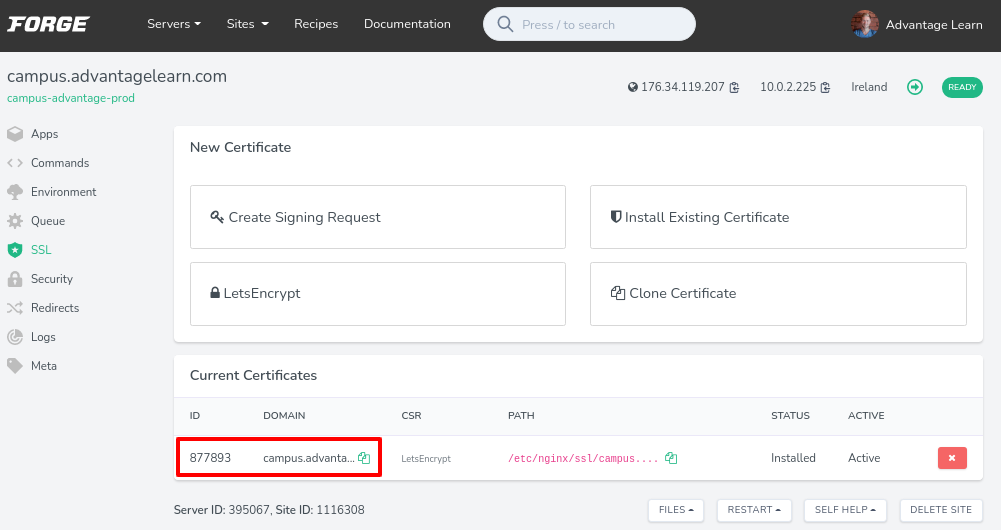
The websocket server will refuse to connect unless it has access to the Let’s Encrypt certificate and key. There are two ENV variables to be added: LARAVEL_WEBSOCKETS_SSL_LOCAL_CERT and LARAVEL_WEBSOCKETS_SSL_LOCAL_PK. The path to these certs is found at /etc/nginx/ssl/DOMAIN_NAME/SSL_CERT_ID/server.cert and /etc/nginx/ssl/DOMAIN_NAME/SSL_CERT_ID/server.key respectively Here’s a spreadsheet which has a formula for creating the env variables. All you’d need to add is the domain name and SSL cert ID, which you can get from the SSL page for each site: Laravel - SLL Once you have the variables, do the following:
  1. Log into envoyer.io
  2. Find the project for each site
  3. Click on the ‘Server’ tab
  4. Click on ‘manage environment
  5. Enter the server management password
  6. Add the variables at the bottom of the ENV variable and save

Troubleshooting

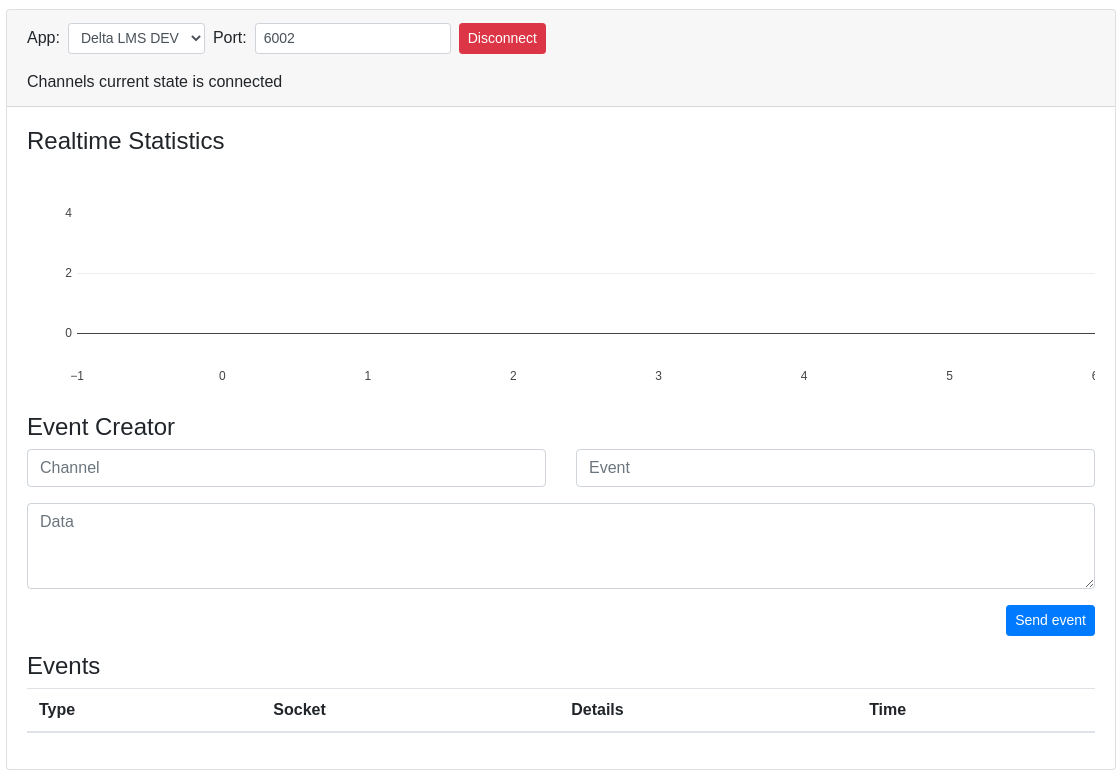
You can access the Laravel Websocket dashboard on any site by going to /laravel-websockets. Choose 6002 as the port and hit connect. If it connects, all should be fine 🎉 Laravel - Troubleshooting Unfortunately it won’t show actual statistics as the reverse proxy from nginx messes with that process. Laravel websockets is great in that it allows us access to realtime data without cost, but it is extremely finnicky and not well documented. If it breaks, you won’t really have any indication as to why. Nevertheless, here is the troubleshooting page. If that doesn’t help, good luck going down the stack overflow rabbit hole! Laravel - Rabbit Hole