> ## Documentation Index
> Fetch the complete documentation index at: https://sol.advantagelearn.com/llms.txt
> Use this file to discover all available pages before exploring further.

# Windows

# Windows

## Local Dev Setup - Using Laragon

### Prerequisites

* [Laragon](https://laragon.org/download/index.html)
* [Git](https://git-scm.com/downloads)
* Access to the git cloud repository (Reach out to team for access)
* Current ENV File (Connect with Team Member that has Delta Set up on their local host)

### Set Up Steps

1. Clone The Repo to your local Dev from the Cloud Source Control **(NB Clone code to folder called Delta)**

2. Install Laragon

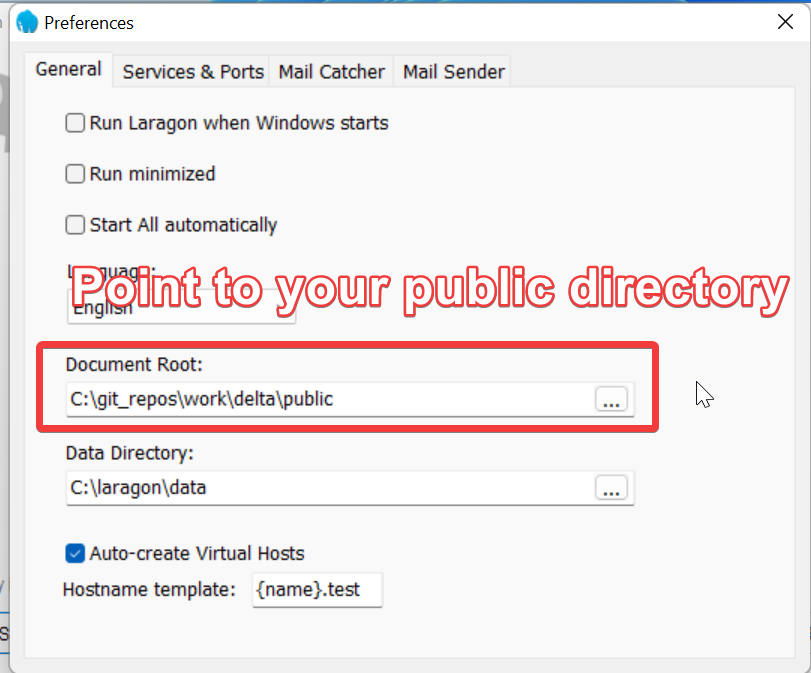
3. Update where Laragon should read the code from:
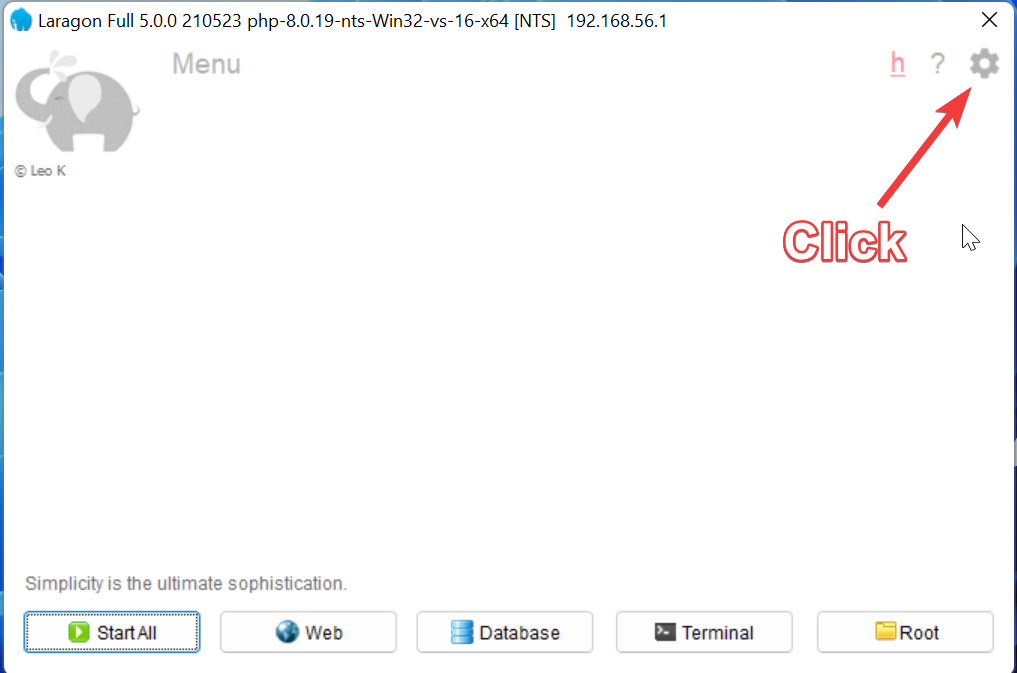
   <img src="https://mintcdn.com/alt-595e3808/MDd2ERsuDZ5RRC-O/technology/images/windows_laragon-file-location.png?fit=max&auto=format&n=MDd2ERsuDZ5RRC-O&q=85&s=dec2e389caf8c3dc7551ba380c753b0f" alt="Laragon file location" width="1017" height="673" data-path="technology/images/windows_laragon-file-location.png" />

   <img src="https://mintcdn.com/alt-595e3808/MDd2ERsuDZ5RRC-O/technology/images/windows_laragon-point-to-directory.png?fit=max&auto=format&n=MDd2ERsuDZ5RRC-O&q=85&s=d9e6b9a89bc0a1ed047b56941578a5a4" alt="File Location" width="811" height="673" data-path="technology/images/windows_laragon-point-to-directory.png" />

4. Check and add missing services needed to run application
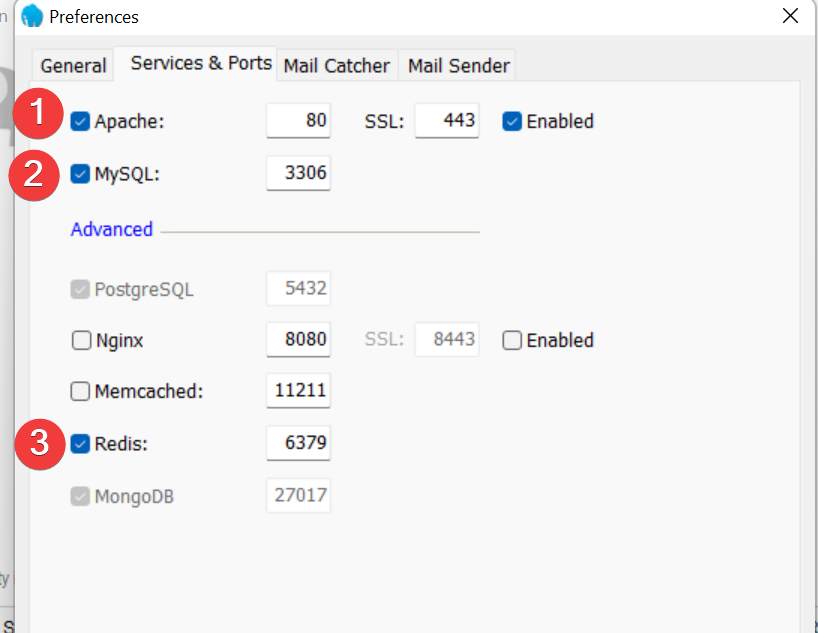
   <img src="https://mintcdn.com/alt-595e3808/MDd2ERsuDZ5RRC-O/technology/images/windows_laragon-add-missing-services.png?fit=max&auto=format&n=MDd2ERsuDZ5RRC-O&q=85&s=867c0b78e30ef1d0f1041e888f7a8201" alt="Add missing services" width="818" height="633" data-path="technology/images/windows_laragon-add-missing-services.png" />

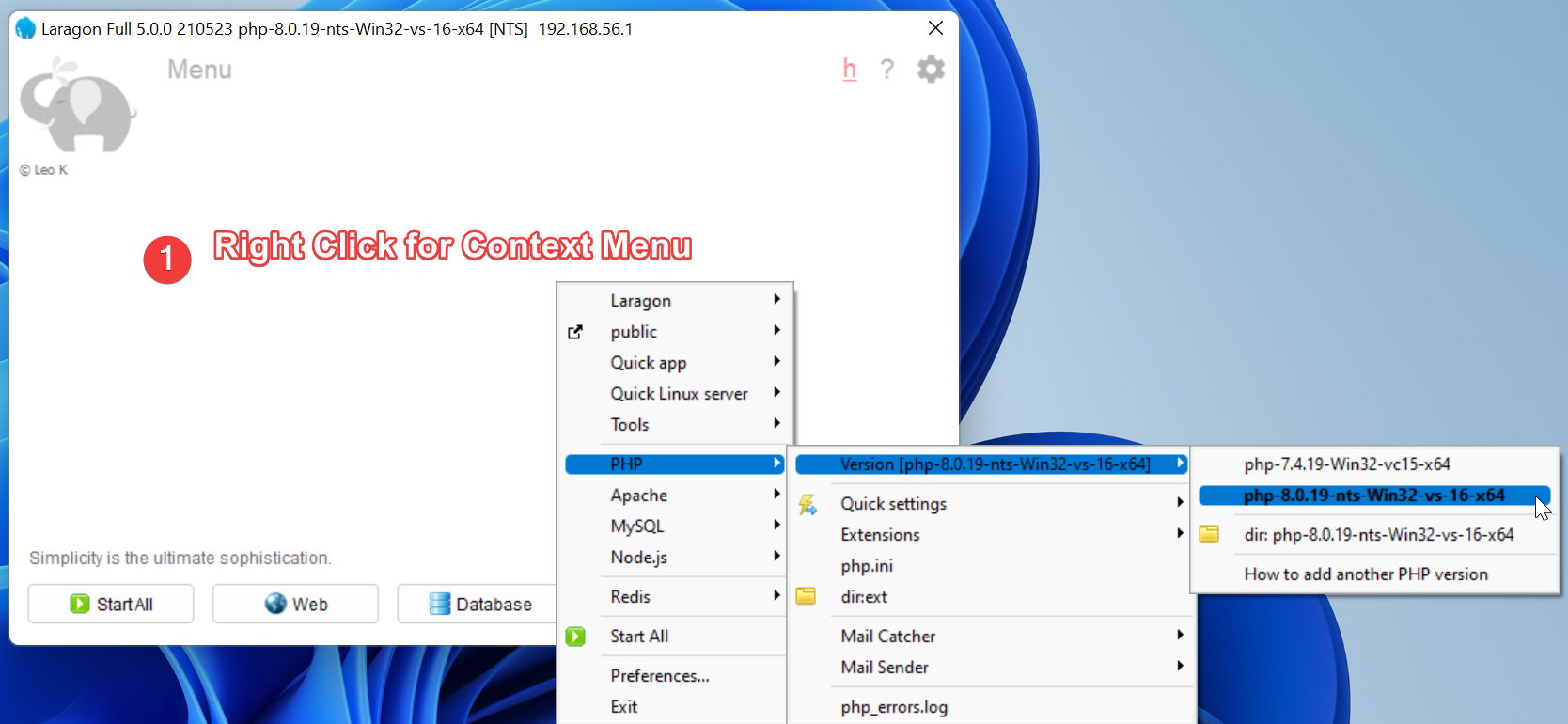
5. Ensure the correct version of PHP will be used in your Laragon environment. If it isn’t there follow the link to see how to add a different version of PHP
   <img src="https://mintcdn.com/alt-595e3808/MDd2ERsuDZ5RRC-O/technology/images/windows_laragon-select-php-version.png?fit=max&auto=format&n=MDd2ERsuDZ5RRC-O&q=85&s=63c38ad5890e27d7ef4428c8cd169148" alt="Select PHP version" width="1668" height="770" data-path="technology/images/windows_laragon-select-php-version.png" />

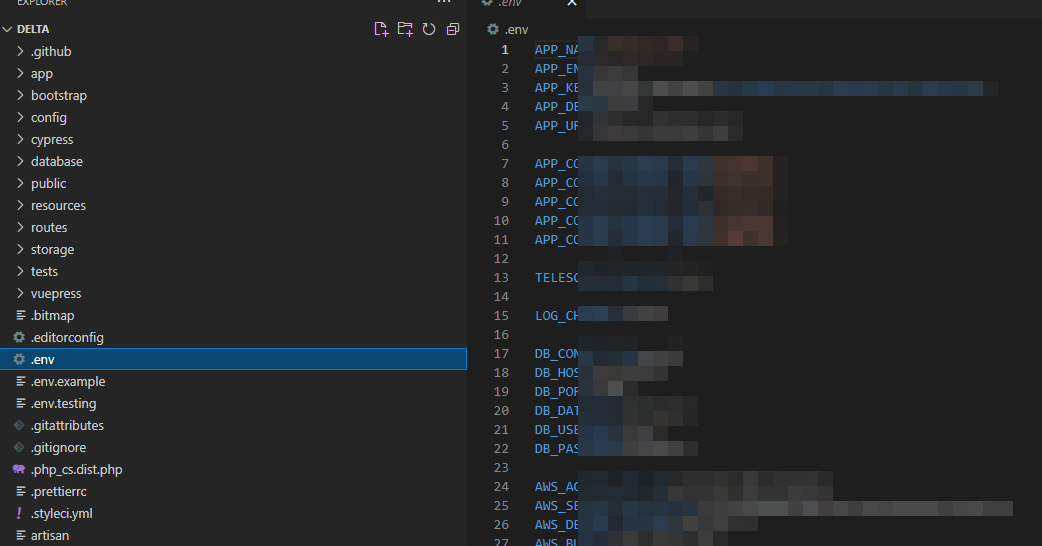
6. If you haven’t all ready - open the code repo on your local dev and add the .env file as previously obtained from a colleague.
   <img src="https://mintcdn.com/alt-595e3808/MDd2ERsuDZ5RRC-O/technology/images/windows_laragon-add-env-file.png?fit=max&auto=format&n=MDd2ERsuDZ5RRC-O&q=85&s=81cab43c8eed866f285f9faa6f59c4e4" alt="Add env file" width="1042" height="546" data-path="technology/images/windows_laragon-add-env-file.png" />

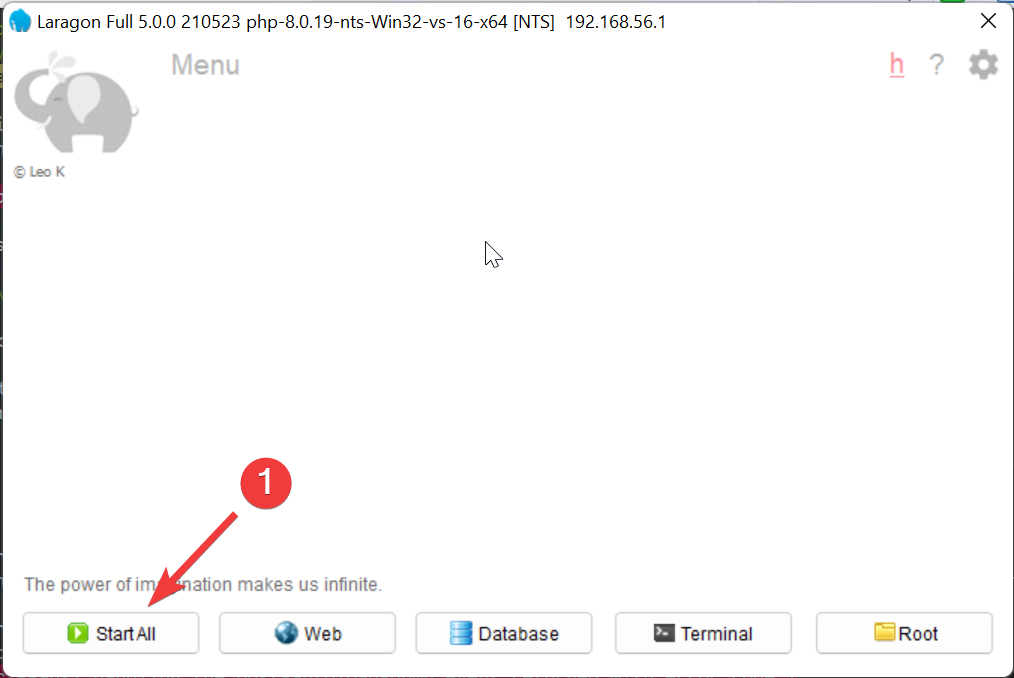
7. Start Laragon

   <img src="https://mintcdn.com/alt-595e3808/MDd2ERsuDZ5RRC-O/technology/images/windows_laragon-start-services.png?fit=max&auto=format&n=MDd2ERsuDZ5RRC-O&q=85&s=9df1e4cf268a89ac3f844eb2b1fca2b8" alt="Start services" width="1014" height="678" data-path="technology/images/windows_laragon-start-services.png" />

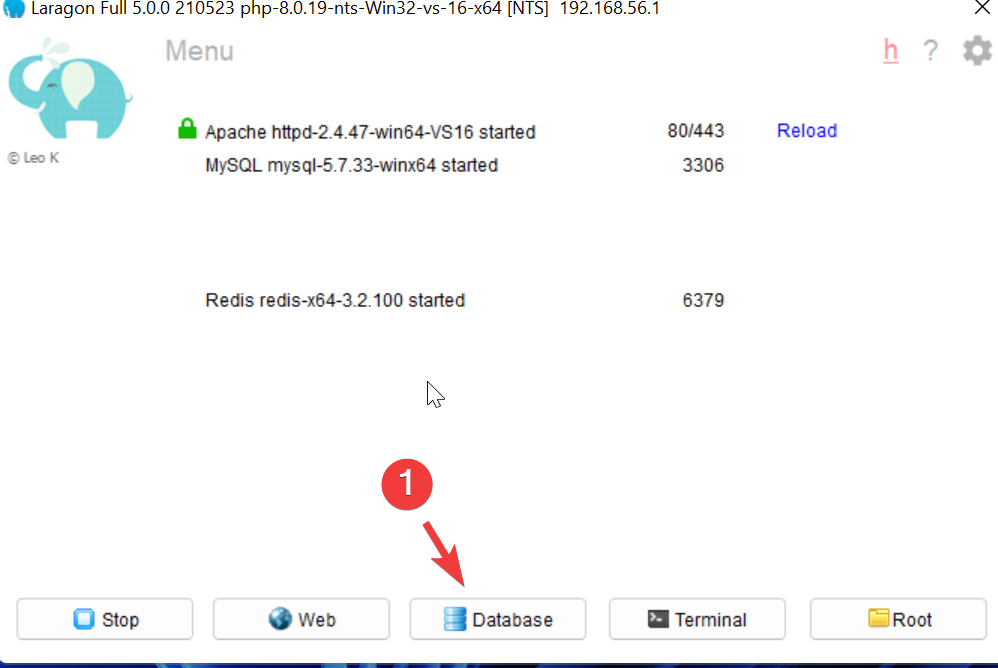
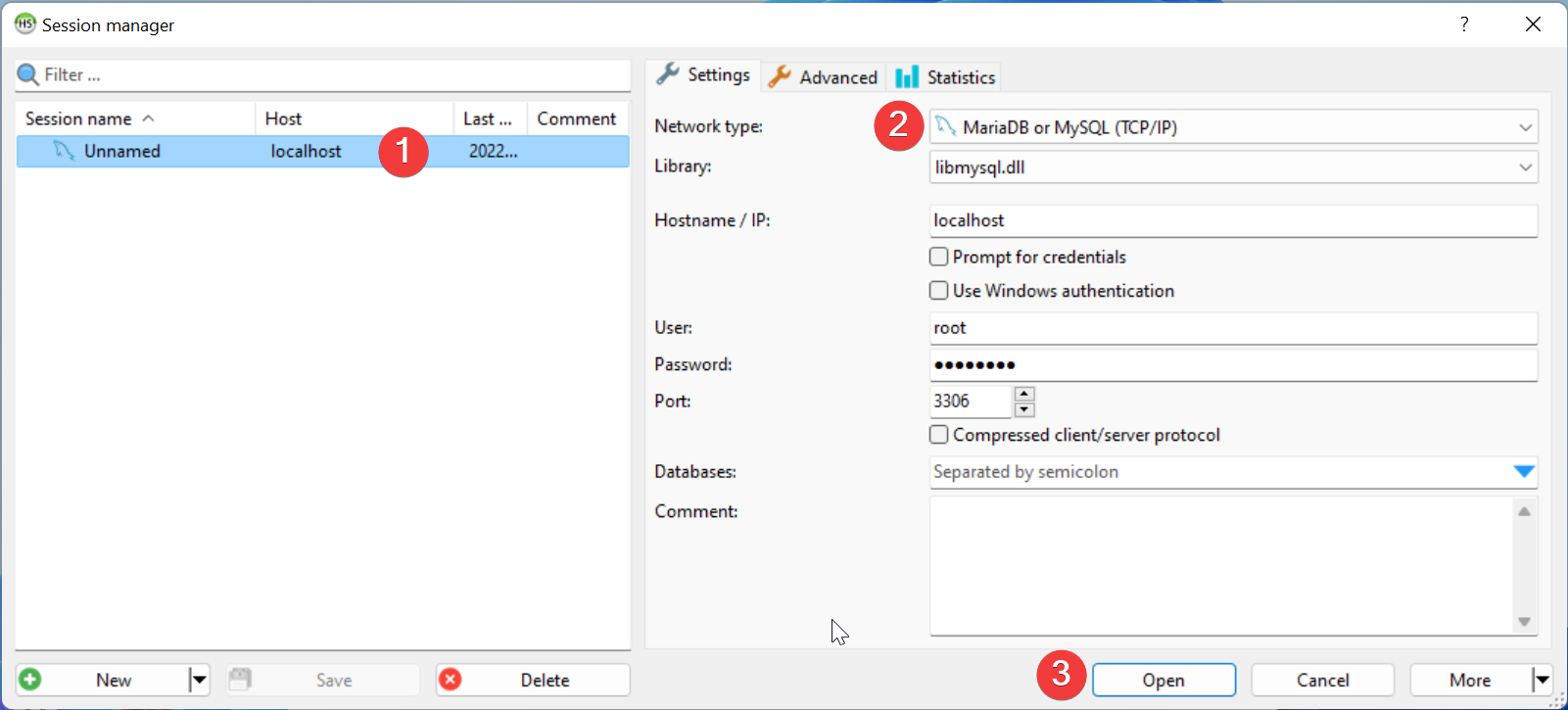
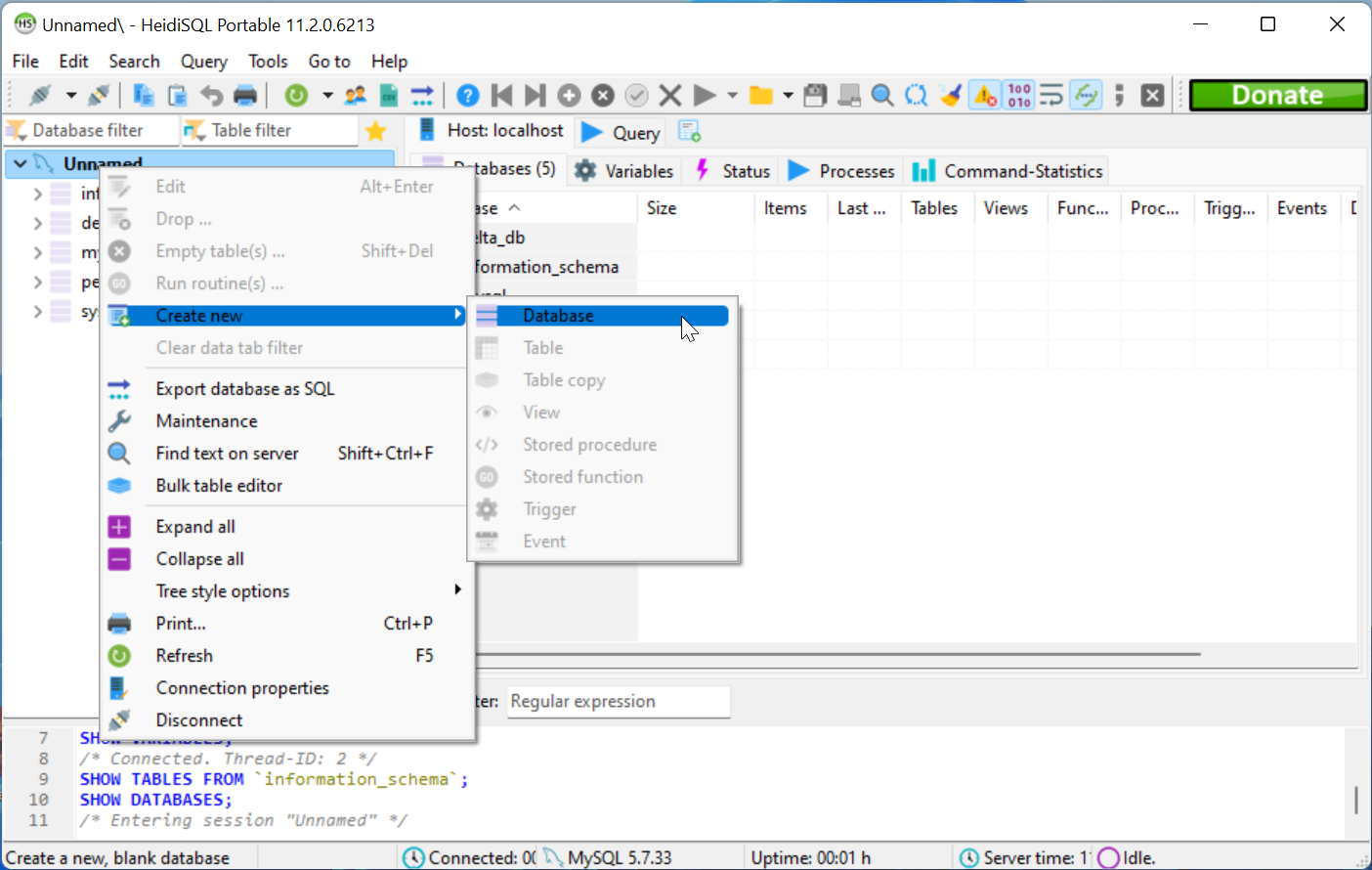
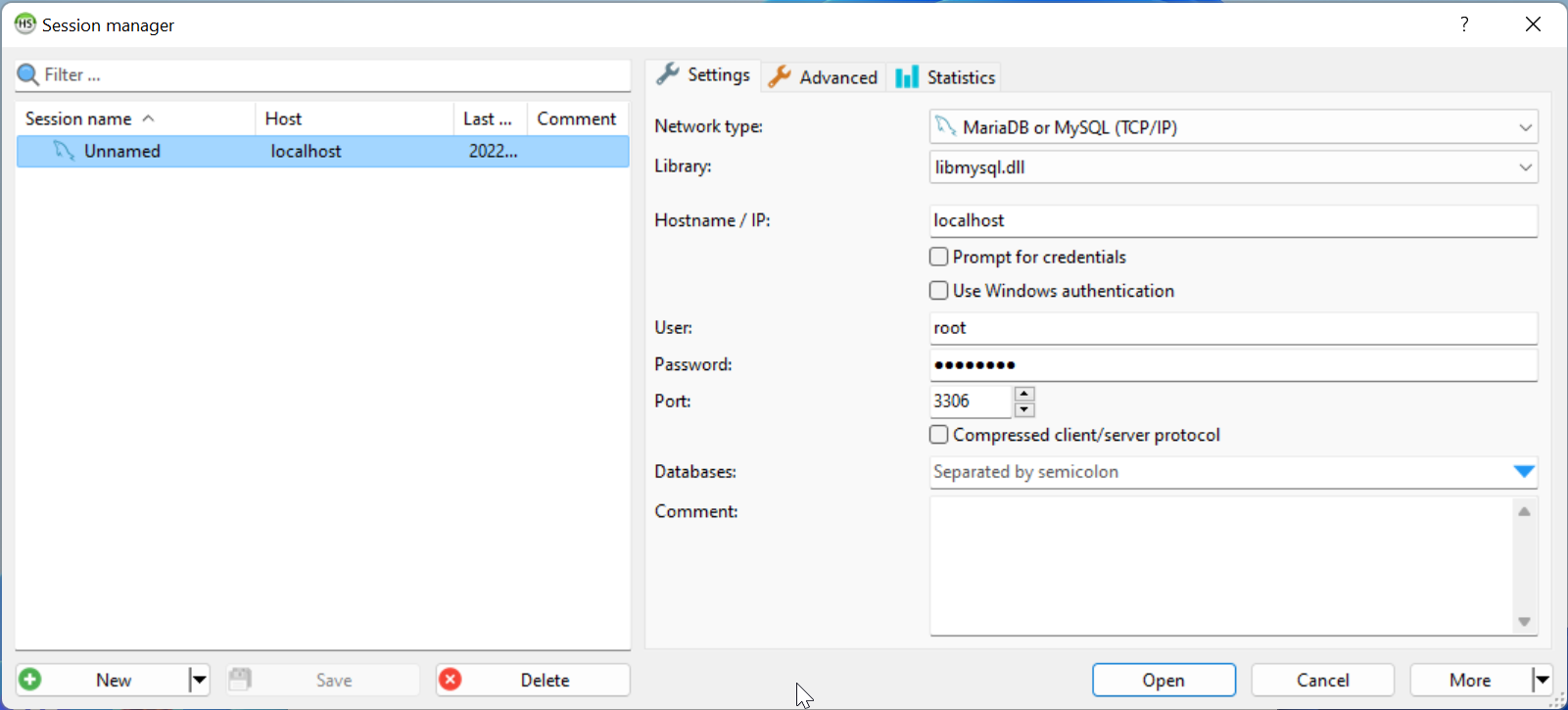
8. Create a database

   <img src="https://mintcdn.com/alt-595e3808/MDd2ERsuDZ5RRC-O/technology/images/windows_laragon-create-database.png?fit=max&auto=format&n=MDd2ERsuDZ5RRC-O&q=85&s=9ac4fca1de67f4213c223b9dd6f87edc" alt="Create a database" width="998" height="668" data-path="technology/images/windows_laragon-create-database.png" />

   <img src="https://mintcdn.com/alt-595e3808/MDd2ERsuDZ5RRC-O/technology/images/windows_laragon-database-ide.png?fit=max&auto=format&n=MDd2ERsuDZ5RRC-O&q=85&s=e084dcf6a6c4b3e01a8720266379fd61" alt="Database ide" width="1601" height="725" data-path="technology/images/windows_laragon-database-ide.png" />

   <img src="https://mintcdn.com/alt-595e3808/MDd2ERsuDZ5RRC-O/technology/images/windows_laragon-manage-database.png?fit=max&auto=format&n=MDd2ERsuDZ5RRC-O&q=85&s=df5a3f724cbc49df4b0761ec92ed3b0e" alt="Manage database" width="1404" height="890" data-path="technology/images/windows_laragon-manage-database.png" />

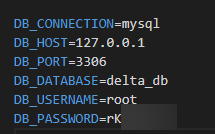
9. Add Database details to ENV

   <img src="https://mintcdn.com/alt-595e3808/MDd2ERsuDZ5RRC-O/technology/images/windows_laragon-database-details.png?fit=max&auto=format&n=MDd2ERsuDZ5RRC-O&q=85&s=61830e17853bc4feb04148300e069336" alt="Database details" width="1601" height="725" data-path="technology/images/windows_laragon-database-details.png" />

   <img src="https://mintcdn.com/alt-595e3808/MDd2ERsuDZ5RRC-O/technology/images/windows_env-file-db.png?fit=max&auto=format&n=MDd2ERsuDZ5RRC-O&q=85&s=b43886ee93185e79336c834521eb297d" alt="Database config" width="215" height="134" data-path="technology/images/windows_env-file-db.png" />

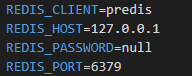
10. Update Redis Details in ENV

    <img src="https://mintcdn.com/alt-595e3808/MDd2ERsuDZ5RRC-O/technology/images/windows_env-file-redis.png?fit=max&auto=format&n=MDd2ERsuDZ5RRC-O&q=85&s=9f827d661fd7f32450365e9379c1e1f5" alt="Redis config" width="192" height="76" data-path="technology/images/windows_env-file-redis.png" />

11. We can now commence with the Repo Readme steps - ensure that your console is pointing to the delta parent folder.
    1. composer install
    2. npm install
    3. php artisan migrate
    4. php artisan db:seed
    5. php artisan key:gen
    6. npm run dev (Launches Vite Server)

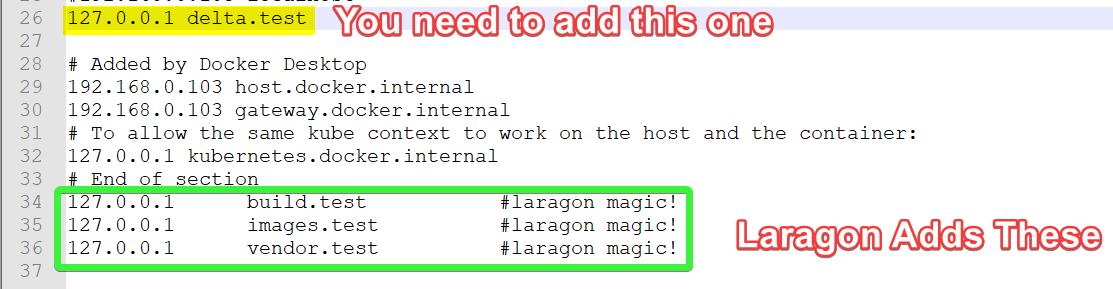
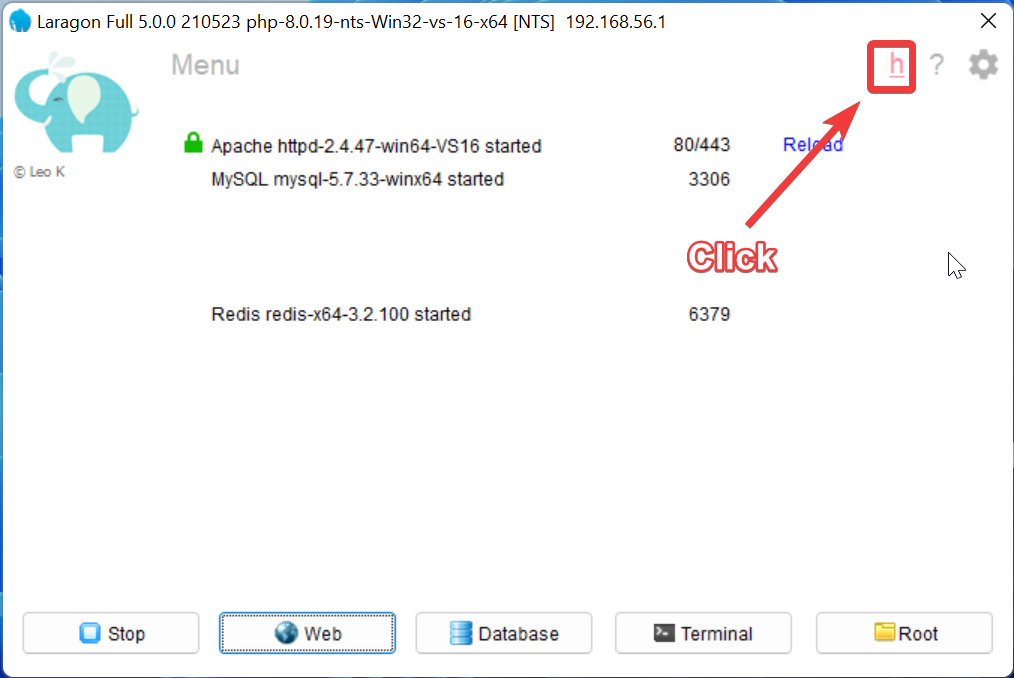
12. Update your Hosts File
    <img src="https://mintcdn.com/alt-595e3808/MDd2ERsuDZ5RRC-O/technology/images/windows_laragon-update-hosts-file.png?fit=max&auto=format&n=MDd2ERsuDZ5RRC-O&q=85&s=557af70075fc0542a8067af87205d836" alt="Update hosts file" width="1014" height="678" data-path="technology/images/windows_laragon-update-hosts-file.png" />

    <img src="https://mintcdn.com/alt-595e3808/MDd2ERsuDZ5RRC-O/technology/images/windows_hosts-file.png?fit=max&auto=format&n=MDd2ERsuDZ5RRC-O&q=85&s=2a2ac431937c5a886352f2cd2429562e" alt="Hosts file" width="1113" height="289" data-path="technology/images/windows_hosts-file.png" />

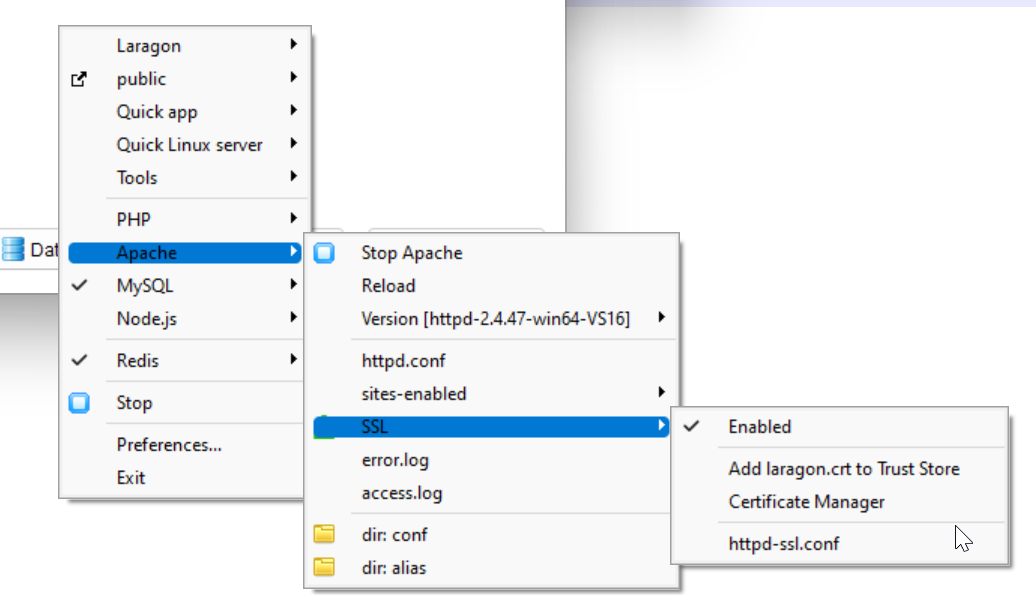
13. Ensure you’ve enabled SSL on you apache server (Right click on Laragon UI)
    <img src="https://mintcdn.com/alt-595e3808/MDd2ERsuDZ5RRC-O/technology/images/windows_laragon-enable-ssl.png?fit=max&auto=format&n=MDd2ERsuDZ5RRC-O&q=85&s=d2b21e9ca05816d8111d74d0007c6da0" alt="Enable SSL" width="1036" height="595" data-path="technology/images/windows_laragon-enable-ssl.png" />

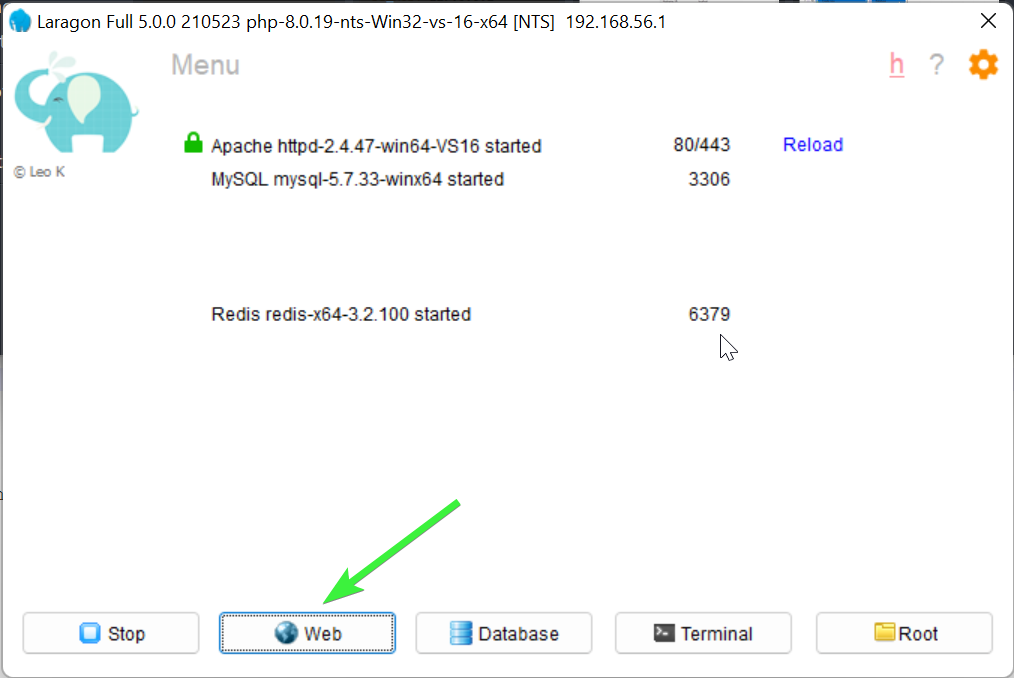
14. Finally hit your local site

<img src="https://mintcdn.com/alt-595e3808/MDd2ERsuDZ5RRC-O/technology/images/windows_laragon-local-site.png?fit=max&auto=format&n=MDd2ERsuDZ5RRC-O&q=85&s=26546cd29c85015688b0019eee632746" alt="Local Site" width="1014" height="678" data-path="technology/images/windows_laragon-local-site.png" />

> *Notes:
> You may need to connect with the team to get your Auth0 set up so you can log in to local host via it.*